What changed in Vessa since launch, newest first. Of the 22 things people asked for, 15 shipped the same day or the next.
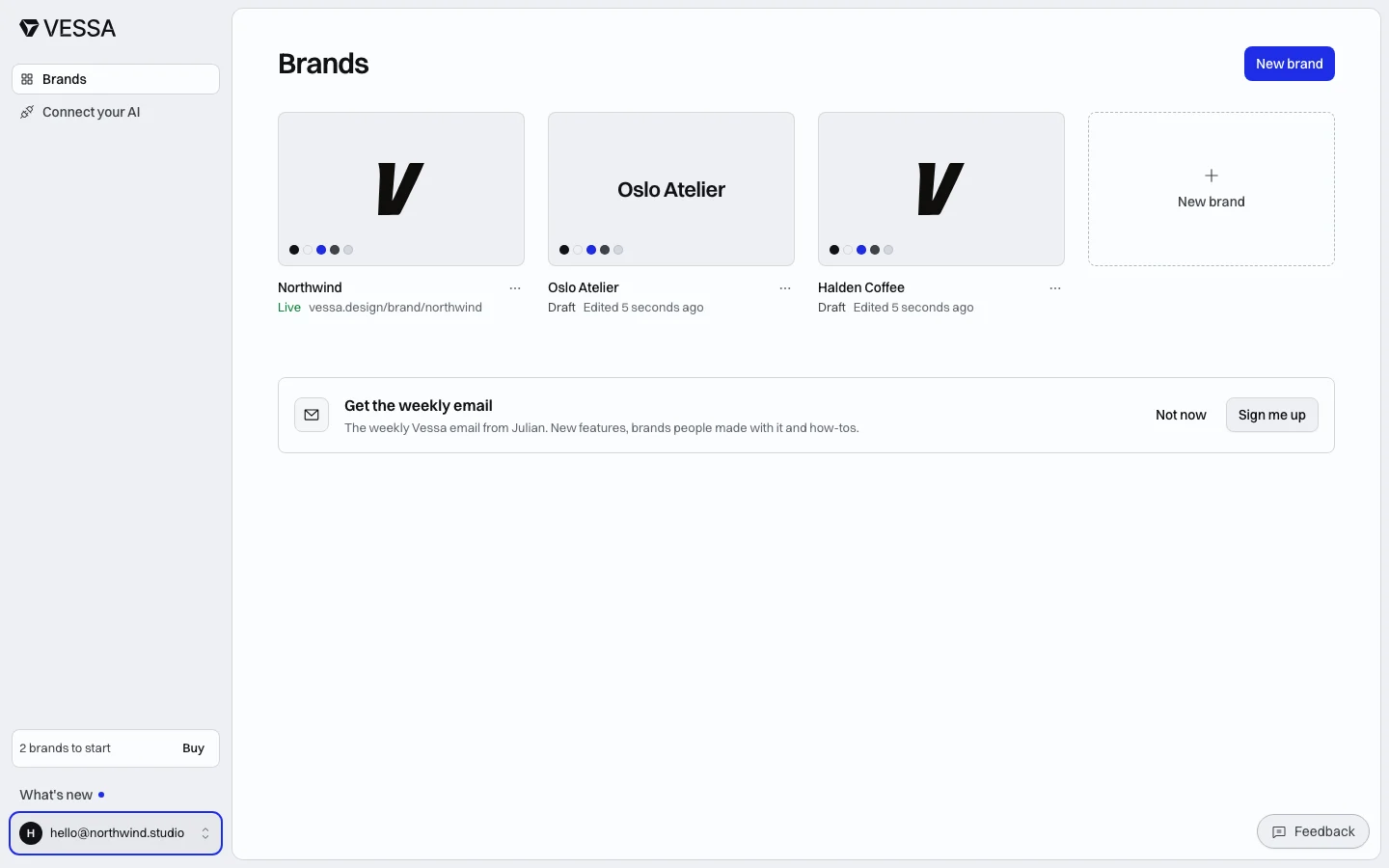
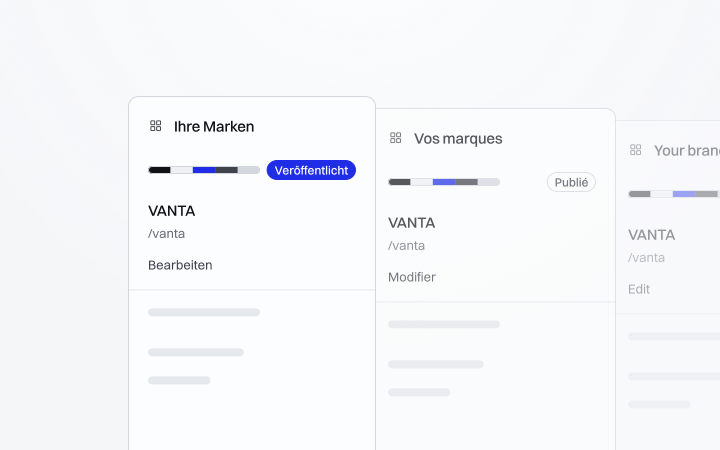
Each brand on your dashboard shows its logo, status and last edit
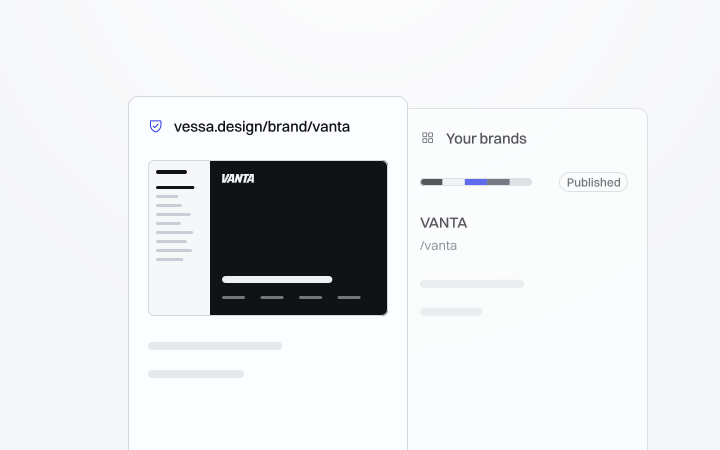
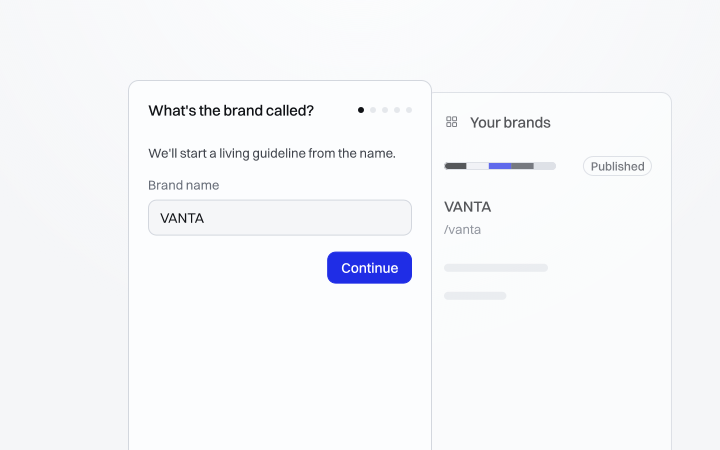
The dashboard leads with your brands: each card shows the brand's own logo on its colours, whether it's live or a draft, and when you last edited it. Your account, What's new and Buy sit in a sidebar.
Plenty of brands arrive with guidelines already, usually as a PDF from a few years back. Rebuilding that section by section is the part nobody has time for.
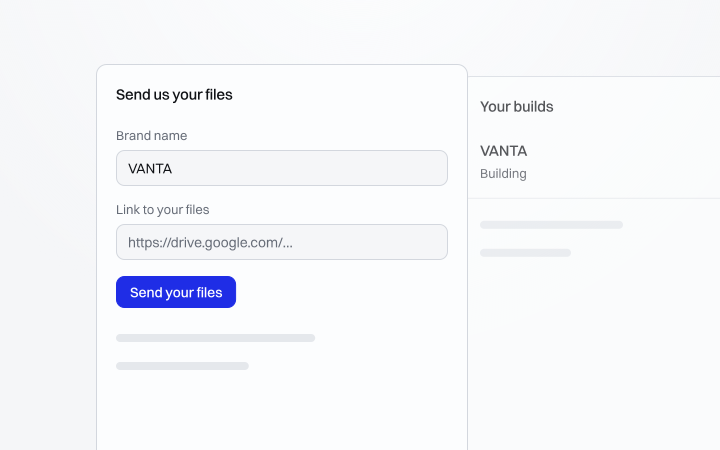
Done for you takes it off your desk. Book a build on the new Done for you page, then share the brand book and its files as one link, and tell us whose brand it is and when you need it. We build it into all nine sections in your account.
You check the page, ask for one round of changes, and it goes live as a client brand, with nothing of Vessa's on it. Before you pay, the page tells you whether this month still has a build open, and afterwards it lists your builds and where each one stands.
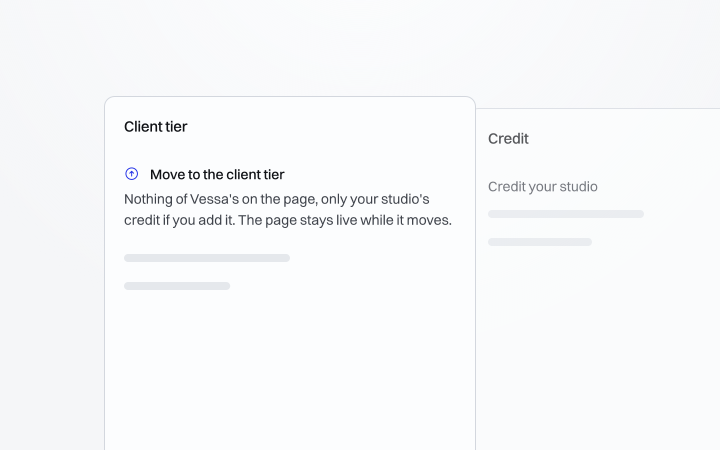
Move a published brand to the client tier
A brand you published as your own can move to the client tier from its Settings tab. Its page drops Published with Vessa, and it stays live while it moves.
Editor rows and fields read right with a screen reader
Every switch, select and number field says its name, each row in a list is one button with its actions beside it, and the wizard's typeface search reads as a list of suggestions.
Quiet text on your page reads clearly
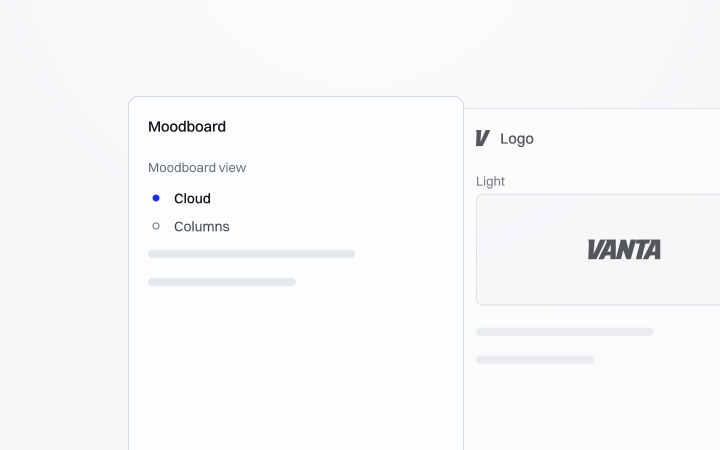
The moodboard's view switch, the captions on your logo pairs and the grey text in the mockups sat under the 4.5:1 contrast minimum on their tinted backgrounds. Every live page clears it now.
Most brands already have their best pictures on their own website, and until now the only way into the moodboard was saving them first and adding them back as files.
Now the moodboard's add row has From your website. Type the address, or let it open on the site you gave the create wizard, and Vessa reads the page and shows its large images. The pictures from the page come ticked. The share image a site sets for link previews comes unticked, because on most sites it's just the logo on a colour. Untick anything you don't want and the rest land in the moodboard in the order your page shows them, up to twelve at a time.
Only add images you have the rights to use, which the picker says right beside its add button. A site that loads its pictures with JavaScript shows nothing here, so for those you still add the files yourself. Once images from a site land, Vessa remembers it, so the picker opens on it next time.
Applications shows a brand on real things like cards, signs and screens. The mockups are good at that, but plenty of real work doesn't fit one, like a printed piece you photographed or a layout you exported flat.
Now the Applications form has a Your images grid. Upload your pictures, give each one a label if you want, and they appear on the page after the mockups, shown whole on the same mat so nothing gets cropped.
It takes images only. A PDF still belongs in Assets as a download, where people can save it. The ask behind this one came in the day before it shipped, from a studio that needed its flat graphics on the page.
Every published page used to end with "Published with Vessa", a client's guidelines included. That's an odd thing to hand over. Your client paid you for their brand guidelines, and the last line of the page names someone else.
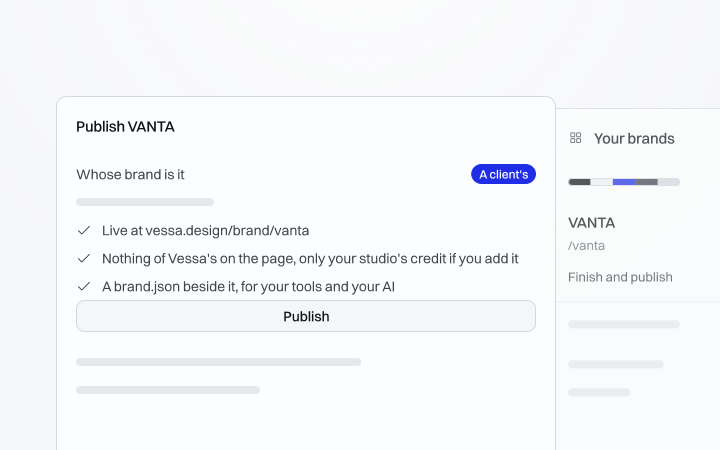
Now the publish dialog asks whose brand it is and shows only what that answer comes with. Choose A client's and the page goes live with nothing of Vessa's at the end of it. Its link preview drops vessa.design as well, on a page behind a password too.
Your own brands keep "Published with Vessa" as before. The buy dialog sells both kinds, and the dashboard shows how many of each you have ready to start. To sign a page with your studio's name, turn on the studio credit in the brand's settings.
Until now, a client's brand was paid for by whoever built it, and the cost had to find its way onto the studio's own invoice. Now you can send the client a link and let them pay for it themselves.
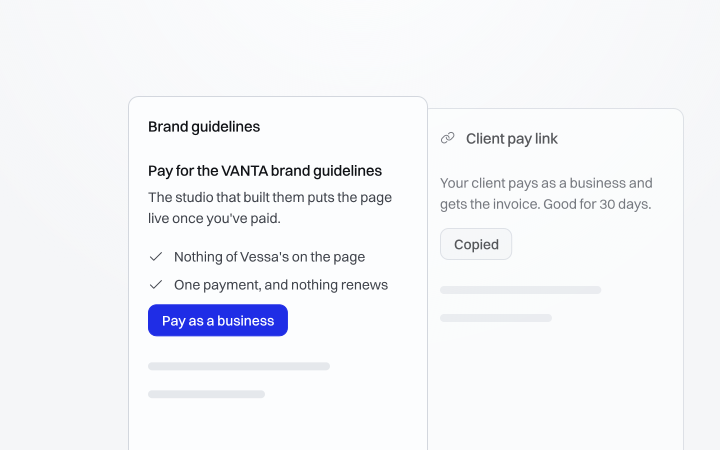
In the publish dialog, say the brand is a client's and copy the client pay link underneath. Your client opens it, sees whose guidelines these are and who built them, and pays as a business. Their company name goes on the invoice, and their VAT ID too if they have one, and Stripe sends the invoice to them.
Paying doesn't publish anything. The brand is paid for on your account, you get an email with the button to publish, and it goes live when you say so. A link works for 30 days, and copying a new one switches the old one off.
A changelog, and a What's new link in your dashboard
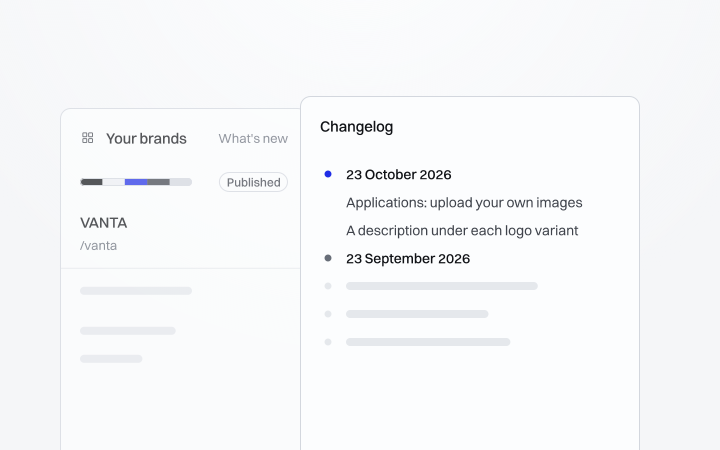
Every change since launch is on the changelog now with its date, and so is what's being built next. In your dashboard, What's new opens it and shows a dot when something new has shipped since you last looked.
A checklist step for your moodboard
The checklist at the foot of the Sections pane has a step for the moodboard. It ticks itself once the moodboard holds an image, or when you hide the section.
A description under each logo variant
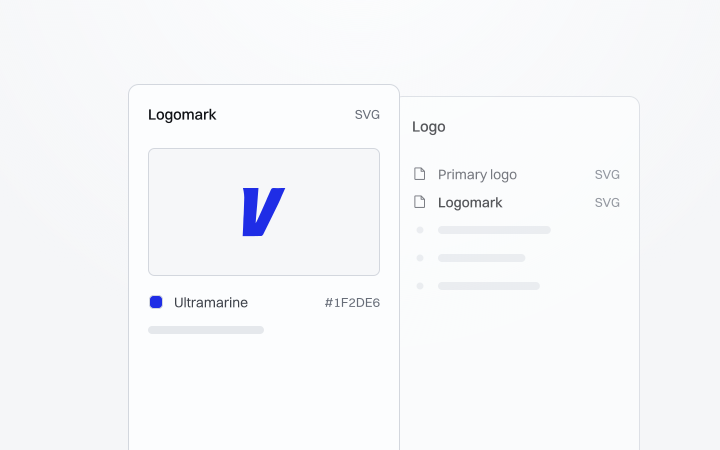
Each logo variant takes an optional Description under its label, for the usage rules that go with it. It shows under the variant's name in the Pairs layout.
Asked for on 24 Sep
Add several logos or images at once
Pick several images at once for the moodboard or Applications, or drop them straight onto the grid. In Logo, Add logos makes a variant of each file, names it after the file and reads from its shape whether it's a mark or a wordmark.
Asked for on 18 Aug
Brand books and big photos upload now
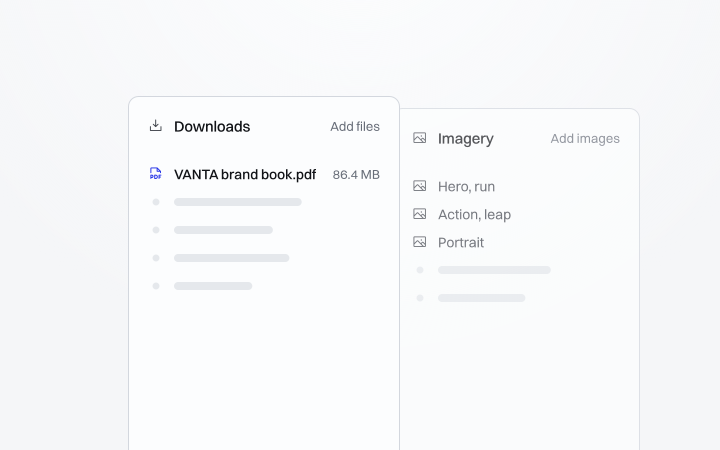
Downloads take files up to 100 MB now, so a brand book or print file fits. Images, logos and fonts go up to 15 MB, and a photo over 4,000 px on its longest side is scaled to 4,000 px as it uploads.
Credit your studio at the end of the page
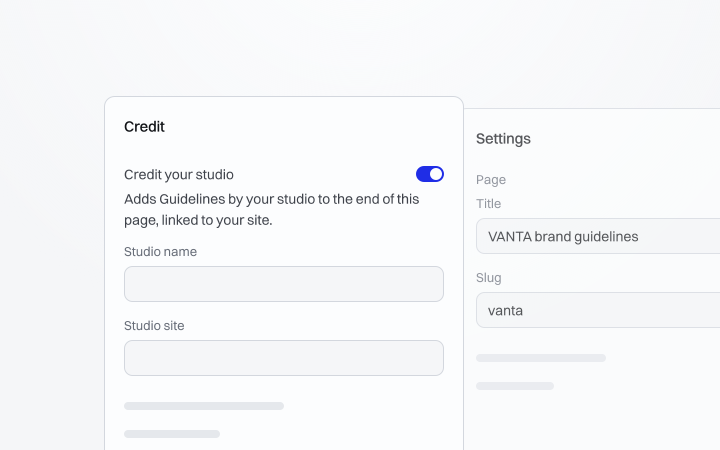
Turn on Credit your studio in a brand's settings and the page ends with your studio's name, linked to your site. Save your studio once in account settings and each brand's credit starts from it.
Downloads take design and office files
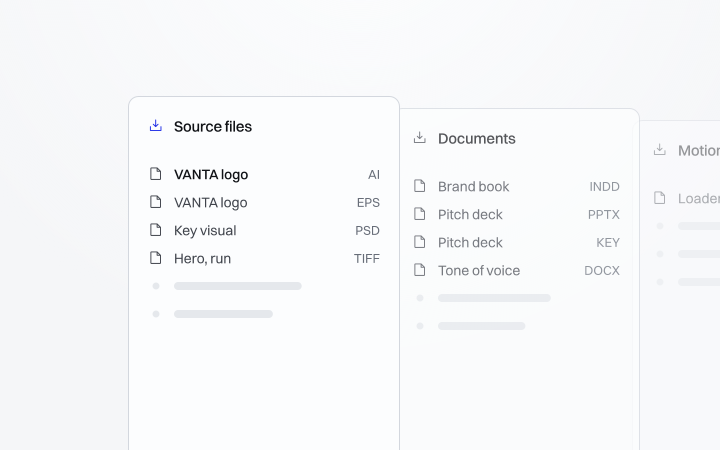
Your downloads take the files a brand folder holds: AI, EPS, PSD, TIFF, InDesign, PowerPoint, Keynote, Word and GIF, up to 100 MB each. A click always saves them as a file.
Import a tokens file from Figma or Tokens Studio
The token import in the Brand tab reads a design-tokens JSON as well as CSS: Figma's variables export, Tokens Studio or any DTCG file. Colours and typefaces land in the same review, and nothing changes until you apply.
Read and confirm your AI drafts in one list
The publish dialog lists every section that's still an AI draft and shows each one on your page as you point at it. Confirm it on its row, or tick a few and confirm them together.
Your client approves the review link, no account needed
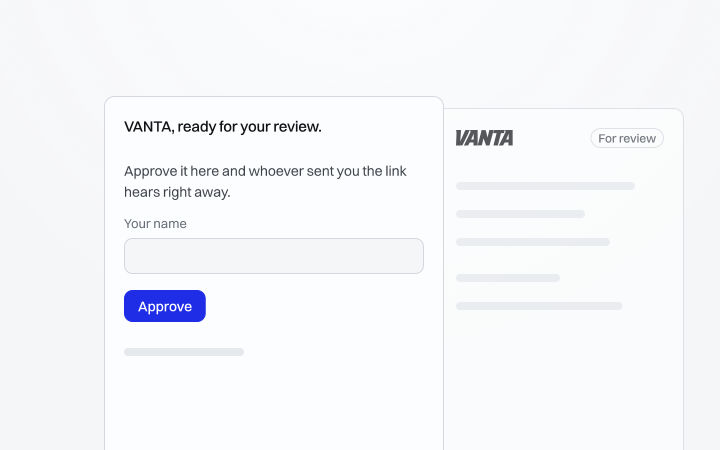
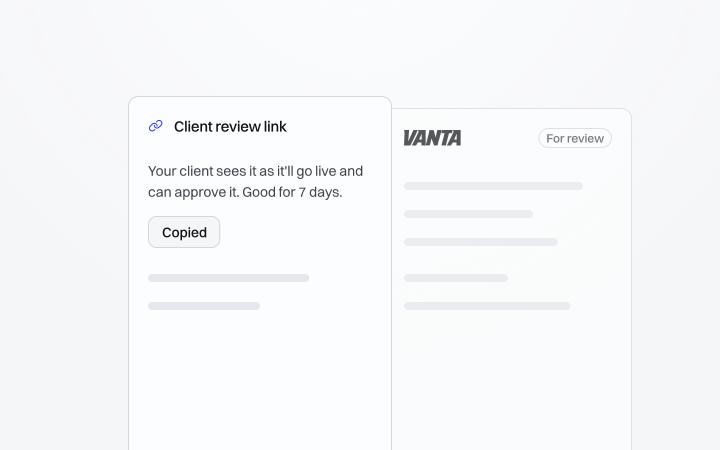
The preview link is now the client review link. Your client can approve the brand from it in one click, and you get an email with the button to publish.
Every gradient you add shows on the page
Some gradients dropped off the last row of the colour mosaic, and the Sheet layout never drew them. Live pages show every one now.
Asked for on 27 Sep · Already on every published page
The cover's colour list works with every palette colour
A palette colour without a hex broke the Color list for the cover. That colour stays out of the list now, and the rest work.
On a phone the cover title no longer runs into the facts
The title and the facts under it share one column now, and on a narrow screen the facts wrap into two columns.
Asked for on 1 Oct · Already on every published page
The dashboard no longer crashes when your browser translates it
Letting Chrome or Edge translate the page could take the dashboard down. It keeps working in any language now.
The AI site brief tries again when the model is busy
When the model was busy, drafting a brief from your website failed outright. It tries once more now, and says why if it still can't.
The cover used to be a full-bleed image, either yours or one of fifteen generated backgrounds, and its corner showed a logo file whenever the brand had one.
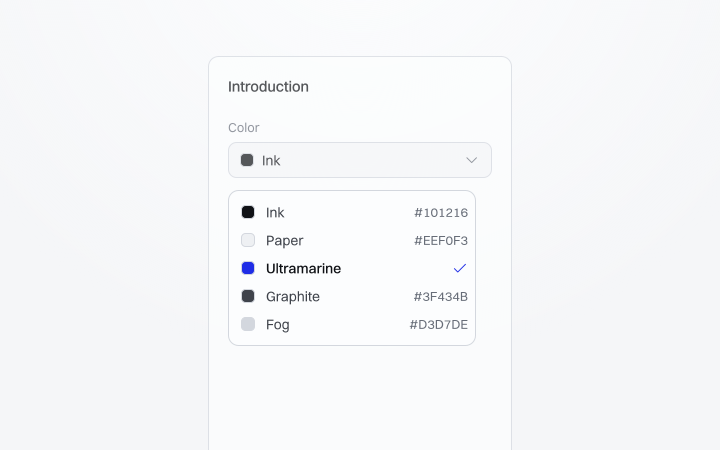
Now the intro form has two new choices. Cover switches between Image and Color: pick a colour from your palette or type any hex, and the cover paints it flat with the text in whichever ink reads best on it. Corner switches between Logo and Brand name, which sets the name in your display typeface and leaves every logo file where it is.
Both were asked for by a studio the evening before, and neither one changes a page until you pick it.
A studio sent iPhone screenshots of their published guideline, and three parts broke on the narrow screen: the clear-space caption ran into the logo, the colour band turned vertical and the typography columns squeezed down to one letter per line.
All three are fixed. On a phone the clear-space caption moves under its diagram and the long note hides, the colour band stays a horizontal strip with a legend you can tap underneath, and the Columns layout stacks its typefaces. A new Show percentages switch in the Color section hides the numbers on the band if you'd rather not show them.
Checking the live guidelines on a phone turned up one more: in the default typography layout the weight comparison collided, so phones now get one cell per weight. All of this is about how pages draw, so every published guideline has it already and there's nothing you need to do.
Asked for that day · Already on every published page
A draft's preview link lasts seven days
Copying a draft's preview link from the publish panel opens it for seven days, and copying it again starts another seven. The Download all ZIP waits until the brand is published.
A single download saves instead of opening in a new tab
Downloading one file from a guideline opened it in the browser. It saves to your computer now.
Asked for that day · Already on every published page
Setting a brand up from nothing takes a while, and studios often build the next brand for the same client, or a sub-brand, from the same bones.
Each brand card on your dashboard now has a Duplicate action beside Delete. It makes a new draft with the same colours, typefaces, sections and files, puts "copy" after its name and opens it in the editor. The files are copied as well, so deleting one brand never takes a picture out of the other.
Being paid for, published or password-protected doesn't carry over. The copy is a fresh draft of its own, and the brand you copied from stays exactly as it was.
Asked for that day
Name the automatic download groups yourself
The Logo files, Typefaces and Brand colors groups in Assets each take a Title on the page of your own, so a UK brand can say colours.
Asked for that day
Download all follows your groups
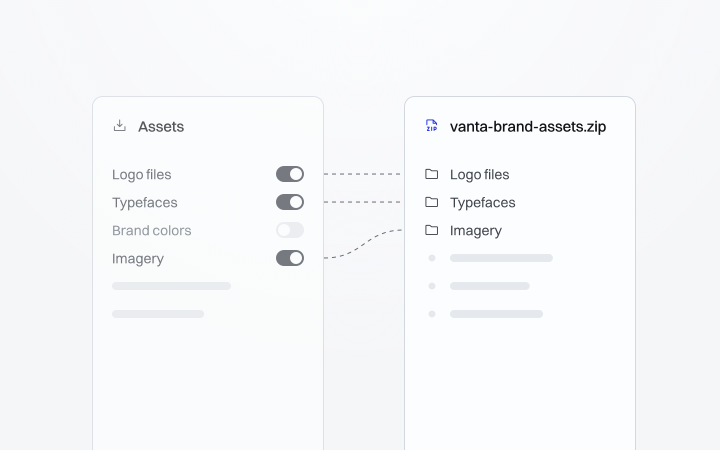
The ZIP holds one folder per group in your Assets section, in your order. A group you switched off stays out of it.
Asked for that day · Already on every published page
The Download all ZIP opens in macOS Archive Utility again
Archive Utility refused the ZIP from a guideline's Download all. It opens like any other archive now.
Asked for that day · Already on every published page
A page password needs at least eight characters
Setting a password on a guideline asks for eight characters or more.
Someone asked if they could change the corner radius of their pictures, and the honest answer was no: every surface had its own corners built in.
Now the Brand tab has a Picture corners row, a slider from 0 to 48 pixels with the number beside it. It sets one radius for every photo the page draws, so the moodboard tiles, the pictures in the motion demos and the asset thumbnails all follow it. Set it to 0 and every picture is square.
A brand that never touches it keeps the corners it had, so nothing already published changed. If you work with your own AI over MCP, it can set the radius for you too.
Asked for that day
New guidelines start on the light page
A new brand starts on the light page, whatever its logo looks like. Dark is a choice you make afterwards in the Brand tab.
The sidebar is where you spend most of your time in Vessa, and it had grown a different kind of row for nearly every job. Moving between sections felt like moving between apps.
Now it has one row. Sections, the Brand tab, the library, settings and the layers inside a section all use it, so once you've learned one level you know them all. The tabs sit on a plain underline and the Brand tab opens on cards for your logo, colours and type. The header and top bar got quieter too, so your page is the loudest thing on screen.
Progress moved to a single line at the foot of the sidebar. It tells you how much of the guideline is filled in without a checklist in the way.
It's easier to judge a tool by what people made with it than by its own landing page, so vessa.design/gallery now collects published guidelines worth a look.
Every entry opens the live guideline, the same page its owner sends to clients, and comes with a few lines of our own on what that brand does well. Each one is written by hand, so no two of them read alike.
A guideline joins once it's complete enough to learn from and we've written about it, so the gallery grows slowly on purpose. If your brand is in it and you'd rather it wasn't, write to hello@vessa.design and we'll take it out.
Every brand used to get the same logo, colour and typography pages, so two very different brands could end up looking like one template.
Now each of those sections has three layouts. Logo comes as Pairs, Stage or Family and Color as Mosaic, Proportions or Sheet. Typography gets Sheets, Columns or Poster.
Pick one under Layout inside the section and the preview redraws straight away. Each layout is a different picture of the same content, so switching costs you nothing and you can try all three before you keep one. The choice is saved per section, so your logo page and your colour page can each go their own way, and readers see the layout you picked.
A pen to rename any section
Section names could always be changed, but nothing said so. A pen now sits beside every section title in its header, and shows on hover in the sidebar.
Asked for on 18 Aug
Each type step sets its own sample text
Every step of the type scale can carry its own words, so one line can be all caps and the next sentence case. A step left blank keeps the shared sample.
Asked for on 3 Sep
Links beside the files in your downloads
A download group can list links next to its files, like a Canva template or a shared folder, so everything a client needs sits in one place.
Asked for that day
The create wizard holds still while you scroll inside it
The wizard's window resized in a loop when its content scrolled, which made the AI path hard to use. It keeps its size now.
Asked for the day before
A round of security fixes from our own review
We went through Vessa looking for weak spots and closed what we found. There's nothing you need to do.
A text logo no longer disappears on one of the two backgrounds
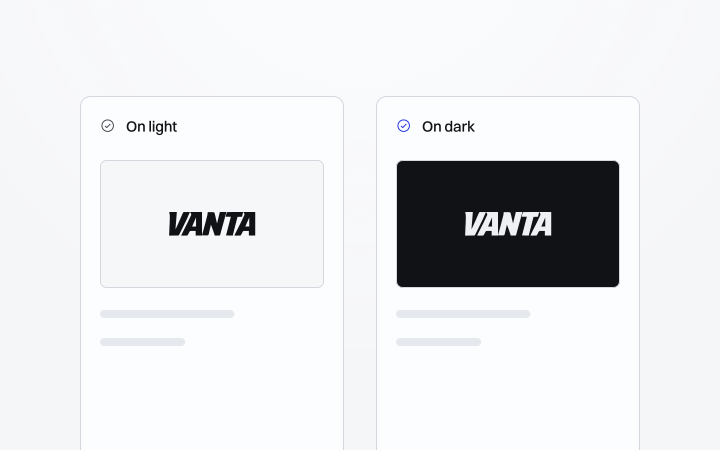
When the page recoloured a logo for its light or dark version, it missed the text in a wordmark. The text follows along now.
Creating a brand used to mean filling in every section yourself. The fastest way to get help was connecting your own AI over MCP, which most people had never heard of.
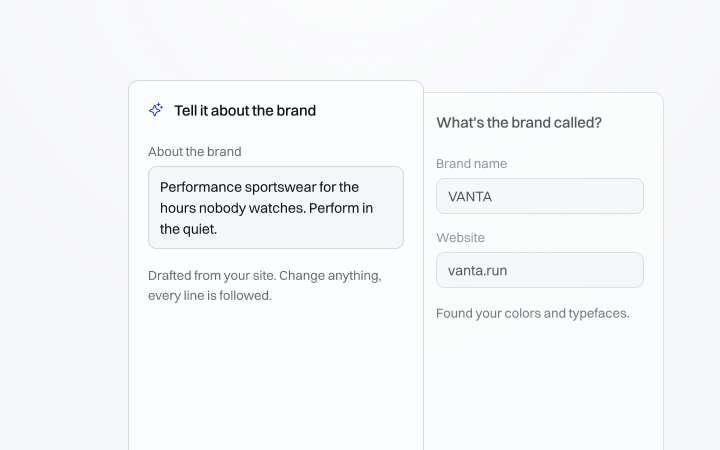
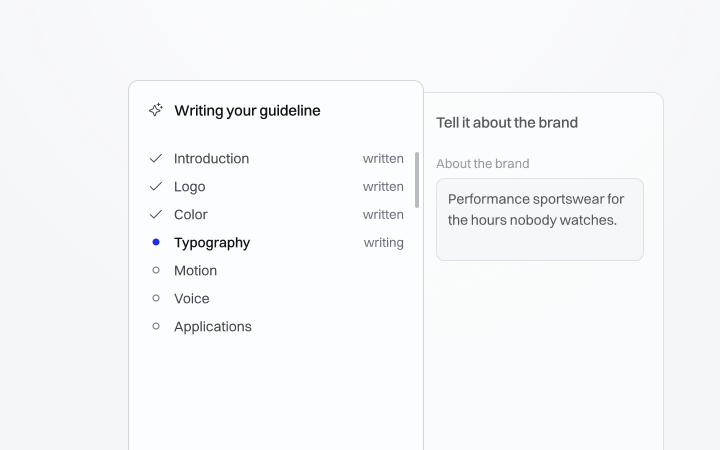
Now the wizard's first step asks how you want to start. By hand works the way it always did. With AI, you add your logo, name your typefaces and paste your website, and Vessa reads the site for its colours and a short brief about the brand, which you can change before you go on.
Then Claude writes seven sections on our side while the wizard shows its progress, and you land in the editor with a draft to work on instead of an empty form. There's nothing to set up, and the MCP connection is still there if you'd rather work from your own AI.
Asked for on 18 Aug
Choose the typeface for each step of your type scale
Each step of the type scale has a Face choice between display and text, and the page names the family beside it, so a brand with two typefaces shows both.
Asked for the day before
Picking a motion personality puts the Motion section on your page
Choosing a personality didn't count as editing the Motion section, so it never reached the published page. It fills in that personality's principles now, and anything you wrote yourself stays.
An Aa specimen beside every typeface download
Each typeface row in the Assets section shows a large Aa set in that face, so people can tell the files apart before they download them.
Already on every published page
Add several files to a download group at once
The picker in an Assets download group lets you choose several files from your library in one go, each one becoming its own row, and every file's preview matches its type.
The create wizard works in a zoomed browser
With the browser zoomed in, the wizard shook sideways and hid its Continue button. It sits still and the button stays in reach.
Until today you paid when you created a brand, before you had seen a single page of your own brand in Vessa, and that's the wrong moment to ask anyone for money.
Now every brand starts free and you build the whole thing first. Fill in every section, try the layouts, connect your AI if you like and watch the guideline come together in the editor's preview. Nothing is locked while you work on it and a draft has no time limit.
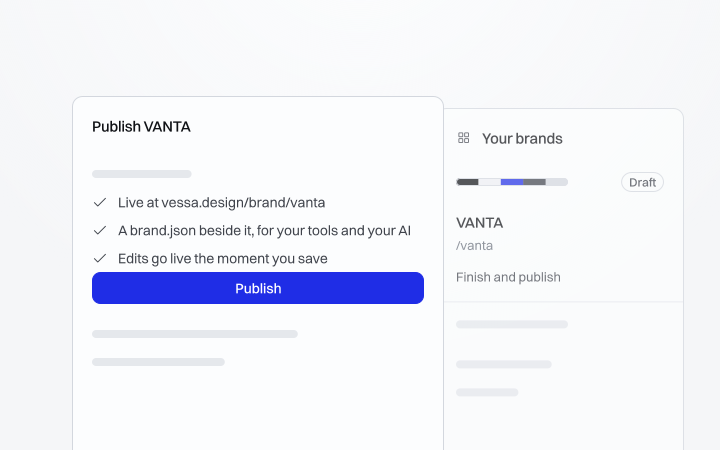
You pay once, when you publish, and the guideline goes live at its own address on vessa.design. From then on it's a real web page you can send to a client or a developer.
Fixes
The fullscreen moodboard opens every time, not only the first · Already on every published page
A one-colour logo keeps its colour on the page
A blue logo was published black because the page recoloured every single-colour mark. Only grey marks get recoloured now.
Asked for the day before · Already on every published page
Vessa turns a brand's rules into a real web page. You fill in a form section by section, and the guideline publishes at its own address on vessa.design, where anyone with the link can read it on any device.
Nine sections cover the whole brand: the cover, logo, colour, typography, motion, voice, moodboard, applications and downloads. Motion is the part most guidelines leave out, so here you pick a personality and the page shows how the brand moves, with real demos instead of a paragraph about easing.
The moodboard opens into a grid you can zoom through, a page can sit behind a password while the work isn't public yet, and if you use Claude or Cursor you can connect it over MCP and let it fill in sections for you.
This entry rolls up everything that shipped before launch. Everything after it has its own entry.
The create wizard no longer freezes when it opens
On some screens the wizard's window kept resizing itself and stopped responding. It opens and stays put now.
Asked for that day
Roadmap
Building now
Client accessInvite your client into their brand as an editor or a viewer, with their own sign-in.
Bring your brandStart from the brand you already have, bigger files included, with AI filling only the gaps.
Next
Print exportYour published guideline prints as a designed document, one section per page.
Page languageSet the language your page is read in, so its fixed words match yours.
Version historyEvery brand keeps versions you can look back at and restore.
View countsSee how often your published guideline is opened, with nothing recorded about who.
Not planned
A canvas or free layoutVessa is a form on purpose, and the layouts are designed so every page holds up.
A public voting boardIdeas come in through Feedback, where a person reads every one.
Seat pricingA guideline is for everyone who needs it, however many people that is.
A free published tierA live guideline is a finished page its owner stands behind, never a free sample with a badge.
Get what ships in your inbox.
The weekly Vessa email from Julian. New features, brands people made with it and how-tos.